Put two live channels side by side on a 16:9 screen and something has to give. Each picture either loses half its width or leaves half the screen black. Tomo TV's multiview on Apple TV has six layouts where every channel keeps its whole picture and the screen stays full. The trick fits in one sentence of school geometry.

Why side-by-side multiview on Apple TV crops or wastes space
A TV picture is 16:9, and so is the screen. Split the screen into two halves and each half is 8:9, a tall slot for a wide picture. Fill the slot and you keep half of each picture's width. Fit the picture and half the screen is black.
An earlier version tried to have it both ways. It drew each layout for 16:9 pictures, then stretched it to fill the screen, picking whichever shape cropped least. Two channels side by side still lost half of each picture, which can take a score bar or a ticker off its edge.
Squash the screen into a square
Squeeze the width of everything by 9/16. Every 16:9 picture becomes a square, and so does the 16:9 screen. Laying whole pictures over the whole screen becomes cutting a square into smaller squares.
A square cuts into n smaller squares for every n other than 2, 3 and 5. Cut any one square into four and you gain three, so once 6, 7 and 8 work, every larger count does too. Two and three fail for a reason you can check by eye. A square has four corners, so with two or three pieces one piece must hold two corners, and that piece is the whole square.
Six multiview layouts with no cropped picture
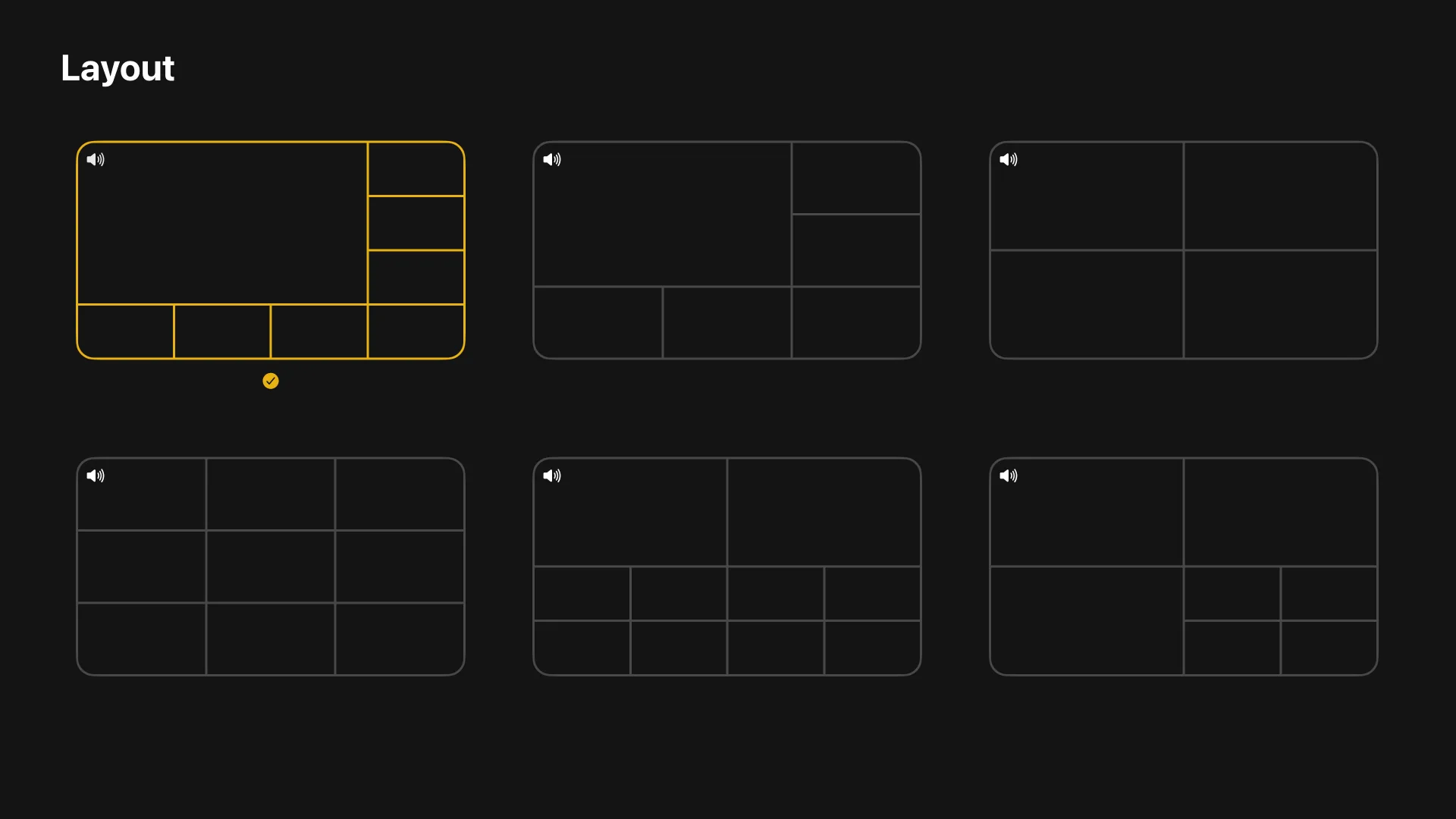
We kept the cuts that line up on a grid. Each layout is a grid of 16:9 cells, and each channel takes a square block of them: one cell, two by two, or three by three.
Every spot's size comes from a fixed table of these blocks, so no spot can take a shape that crops its picture. A 2-point line separates neighbors, and none runs along the screen's edge. On a 16:9 TV the table fills the screen exactly. On Apple TV, four layouts keep a bottom strip that scrolls through the rest of the channel group, its cards one cell wide.
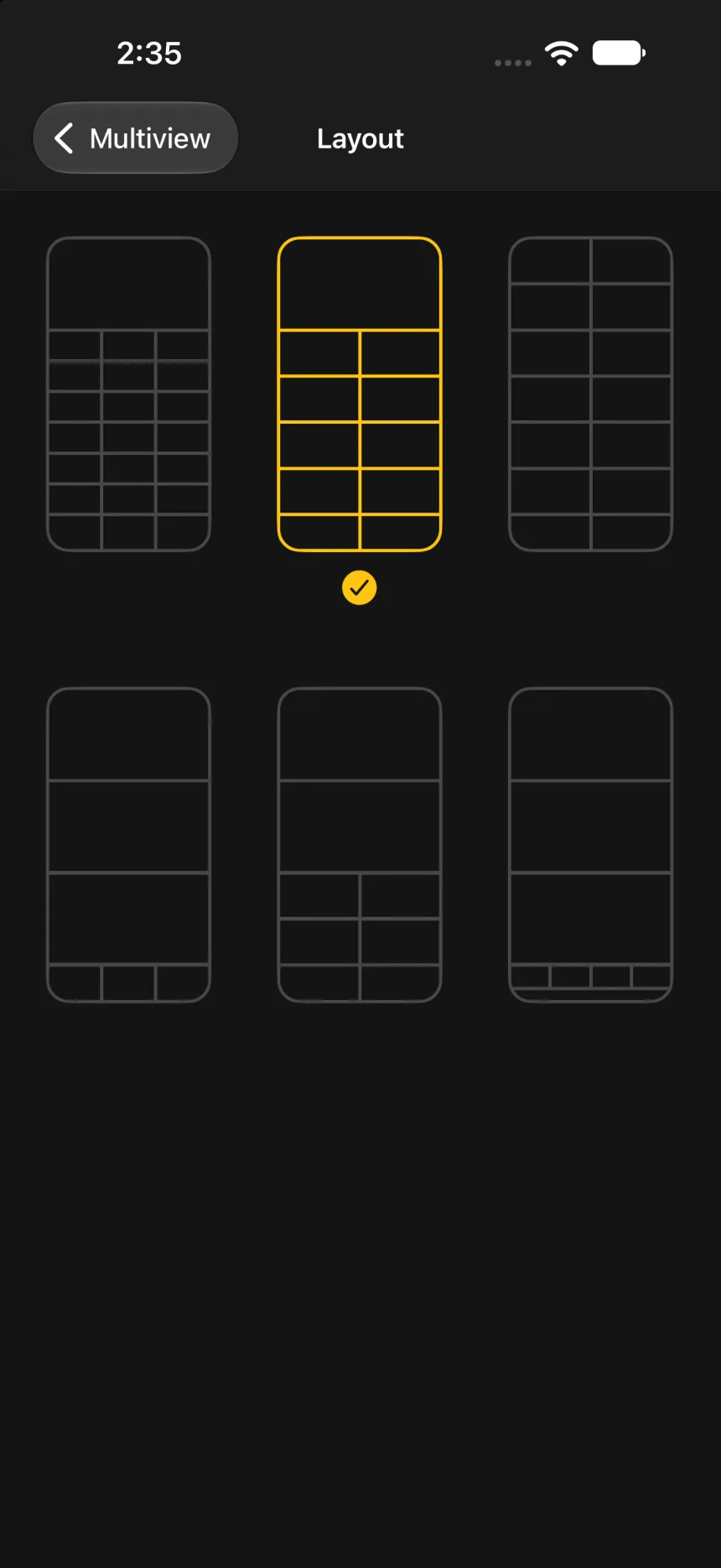
The layout picker opens from Play/Pause on Apple TV, from the top bar on iPhone, iPad and Mac, or from a spot's long press. It draws each layout once, in the shape the screen is held, and marks the current one with a checkmark. The names are for VoiceOver only. Picking a layout keeps the channel with the sound playing and moves it to the new layout's first spot.
Multiview on iPhone, iPad and Mac
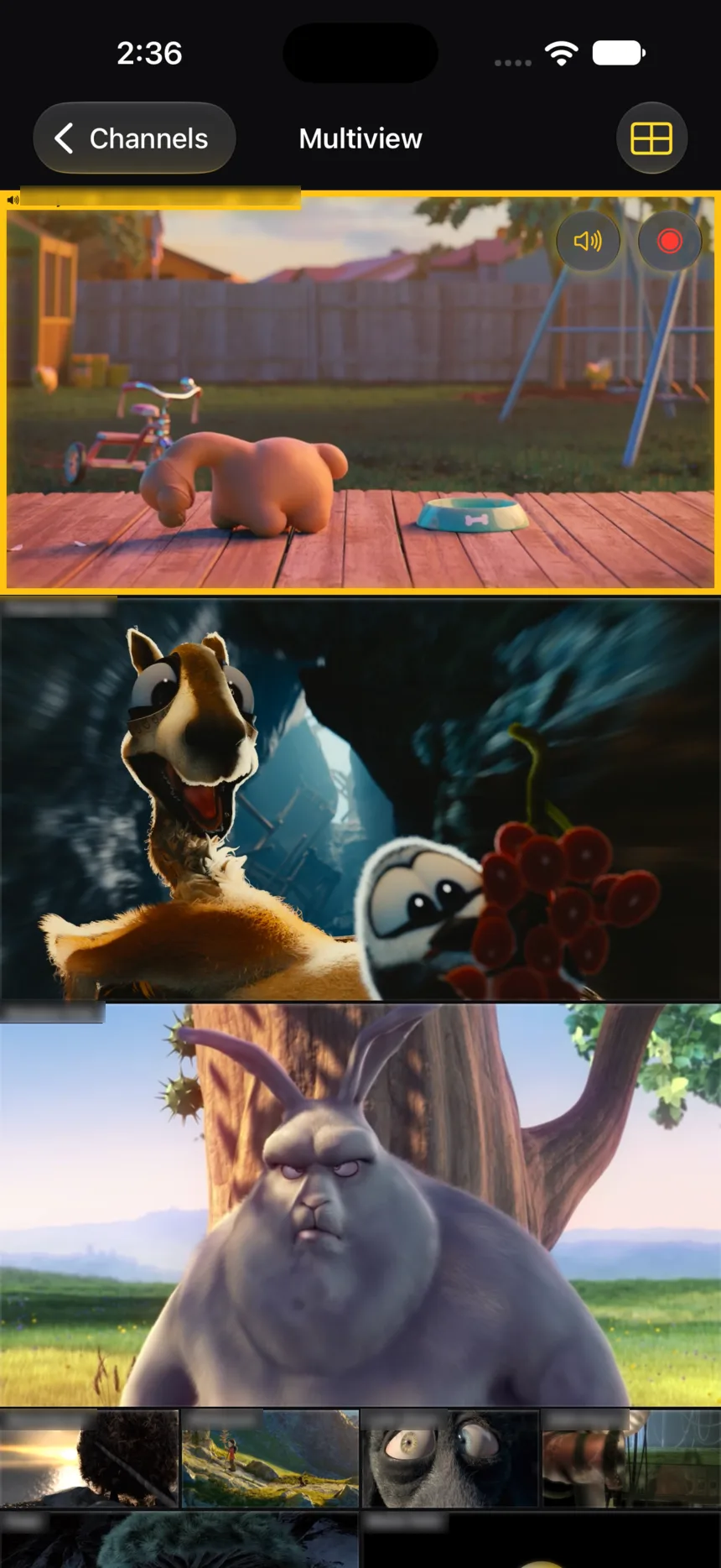
A phone held upright is no 16:9 screen, and a Mac window can be any shape. Each layout has a second table for a screen taller than wide: the same spots in the same order, rearranged to run down the screen. A screen wider than the layout's own shape becomes one grid of small 16:9 cells. The spots take its top-left block, and the group's other channels fill every cell left over.
Our tests place every layout on six window sizes, from an iPhone in portrait to a 1920 by 1080 Apple TV, and every spot comes out 16:9.
On Apple TV, selecting the spot with the sound opens that channel in the app's player, with its native controls. The player takes over the stream the spot was playing instead of opening the channel again, and Menu brings the layout back. On iPhone, iPad and Mac that spot plays in the app's one shared player, drawn inside the spot with a mute button and, for accounts that may record, a record button. Selecting it presents that same player full screen, so the channel never reloads. There the other spots keep playing, since their streams stop only for playback that is not multiview's own.
Four channels live, the rest as pictures
A cut into seven squares does not mean seven streams. At most four spots in any layout play live, and they come first. The others are spots you fill yourself, which show a short clip or a still picture, as do the strip's cards. Those come from the sampler behind the channel wall's looping previews, which opens a channel briefly, then closes it.
Some live TV providers cap how many streams one account can open at once. The channel with the sound opens first, at the player's priority; the other live spots open one at a time behind it, at a lower priority, with a second between them. On a provider that allows one connection, only the channel with the sound plays live, and every other spot from that provider keeps its picture or logo.
The freeze we took out
On one-connection providers we first tried sharing the only connection. While a spot lacked its picture, the channel with the sound froze on its last frame. It lent its connection to the sampler for a round of pictures, then cut back to live. A frozen channel reads as a broken network, whatever the reason.
We removed the rounds: the channel with the sound keeps its connection, and the sampler stays off that provider while it plays.
For flipping channels in the player, see channel surfing on Apple TV. The app itself lives at /lab/tomotv.
When every tile shares one aspect ratio, squash the canvas until the tiles are squares, cut the square into squares, and stretch it back. Two tiles side by side can never fill a canvas of their own shape, so that layout will always crop or waste space.