Tomo TV
Jellyfin Media Client

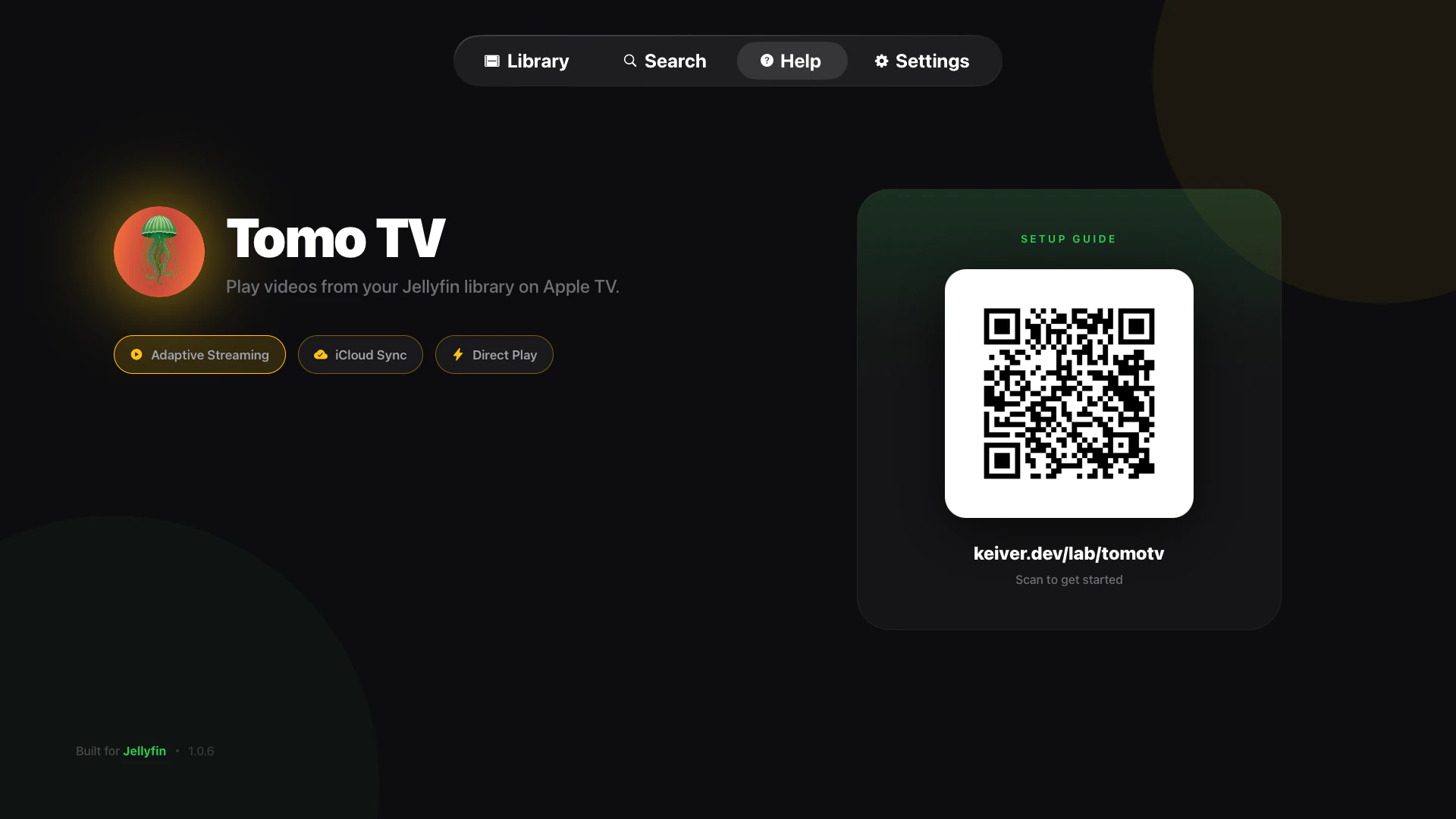
Tomo TV connects your Apple TV to your Jellyfin media server. It detects video codecs automatically and transcodes incompatible formats through your Jellyfin server—no manual configuration needed.

How It Works
When you select a video, Tomo TV checks if Apple TV can play it natively. H.264 and HEVC videos play directly at full quality. Other formats (VP9, AV1, MPEG-2, VC-1, DivX) are transcoded on-the-fly by your Jellyfin server and streamed to your Apple TV.
Features
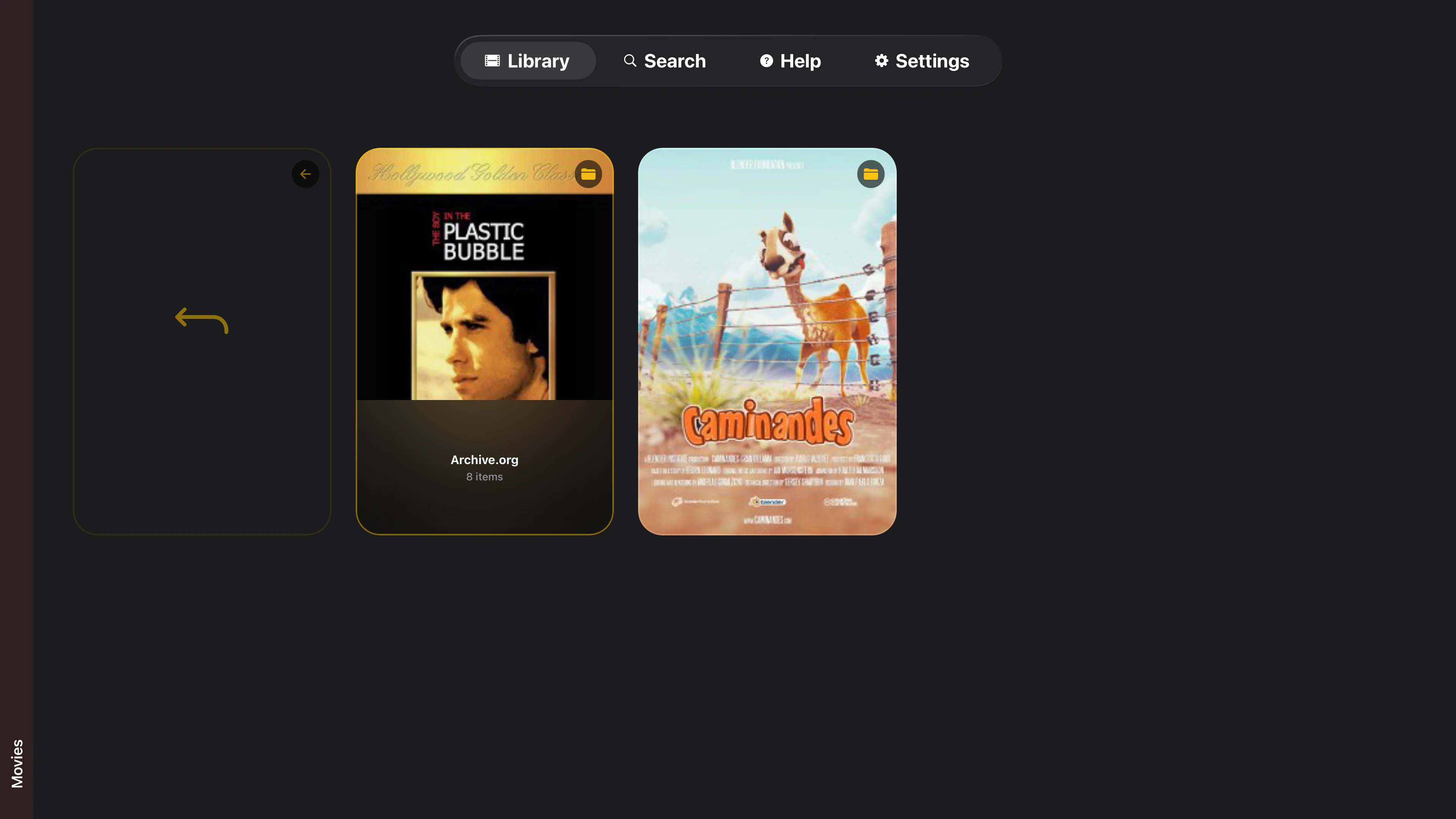
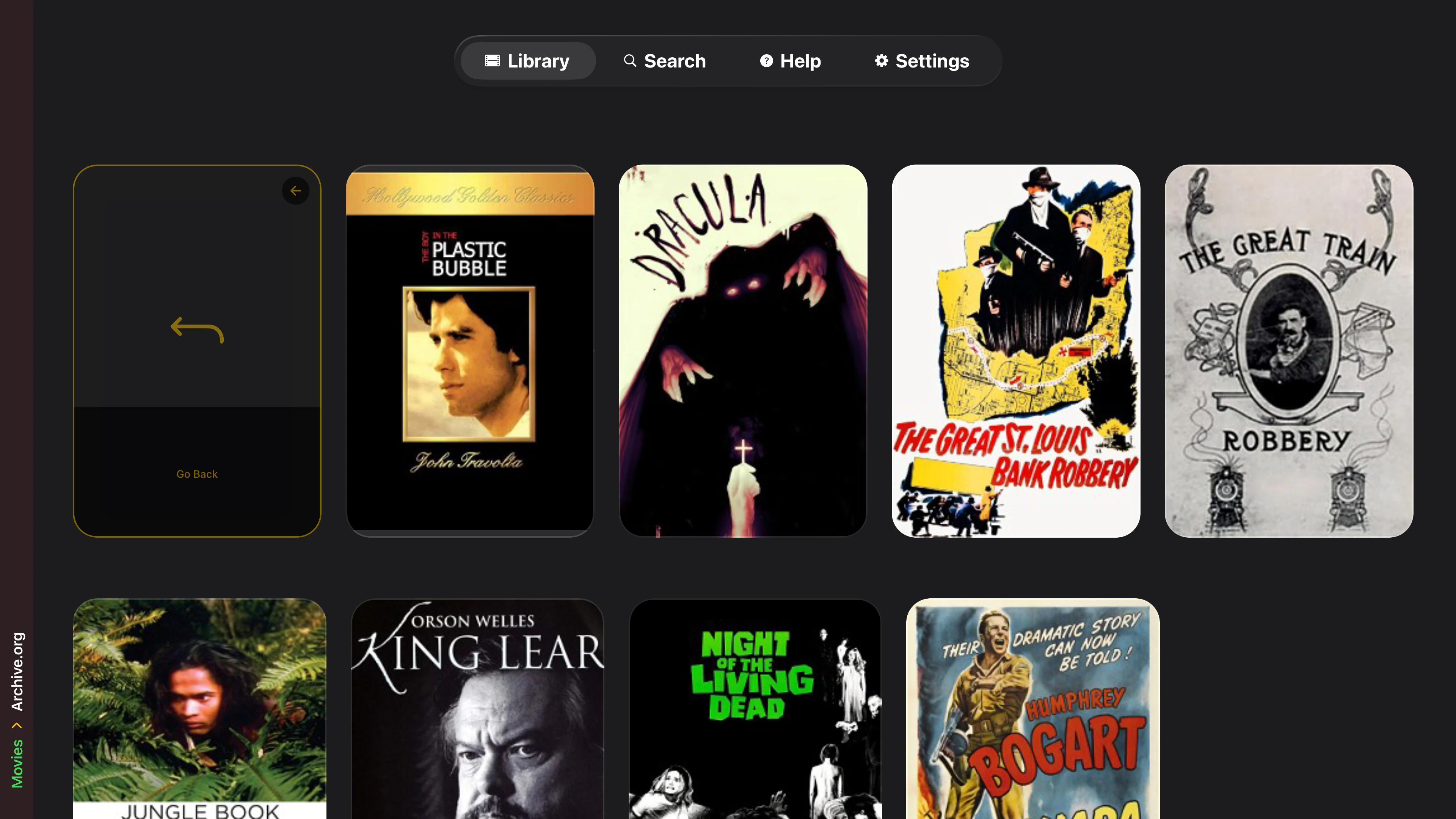
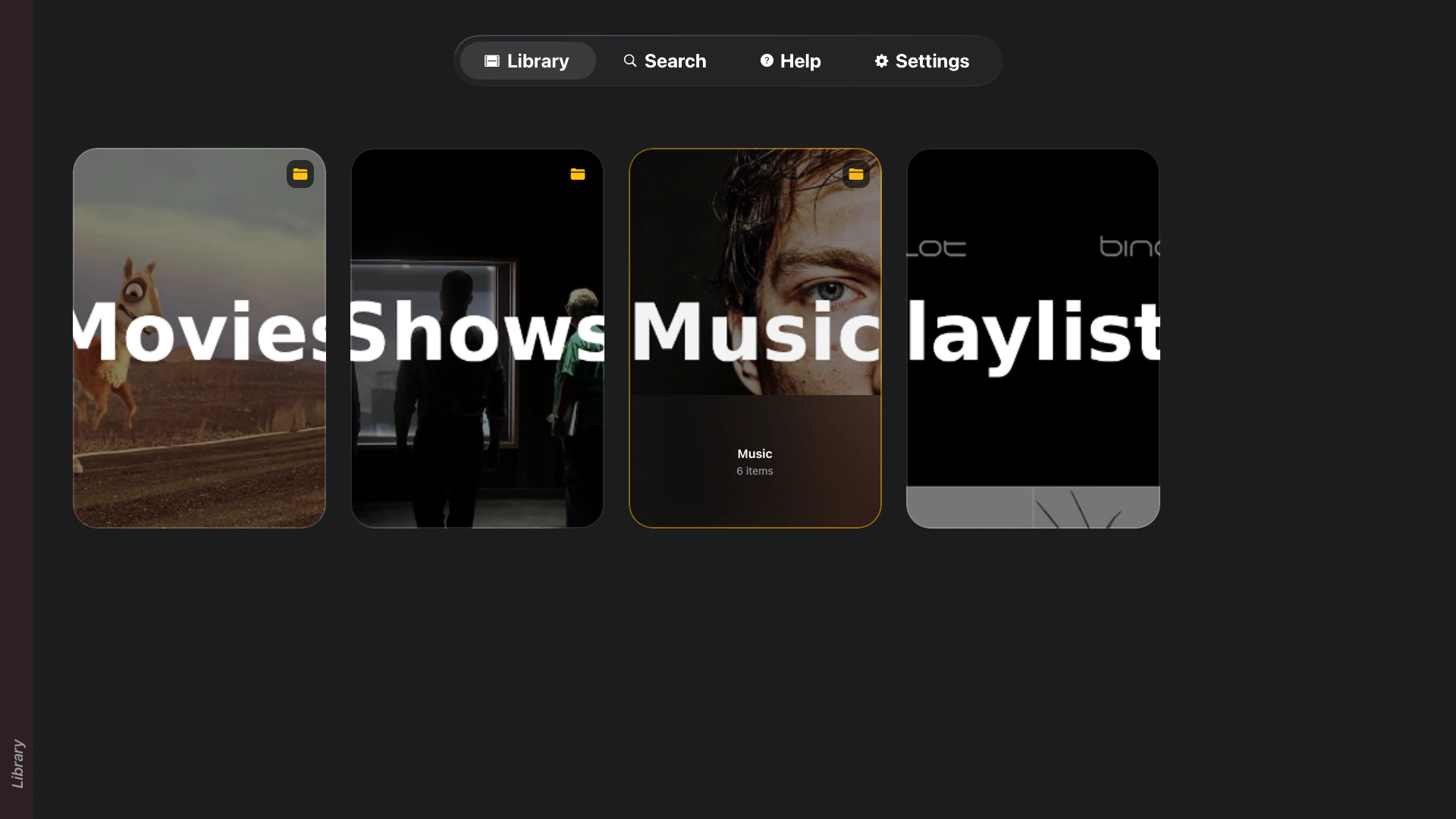
- Folder navigation — Browse your library structure with breadcrumb trail
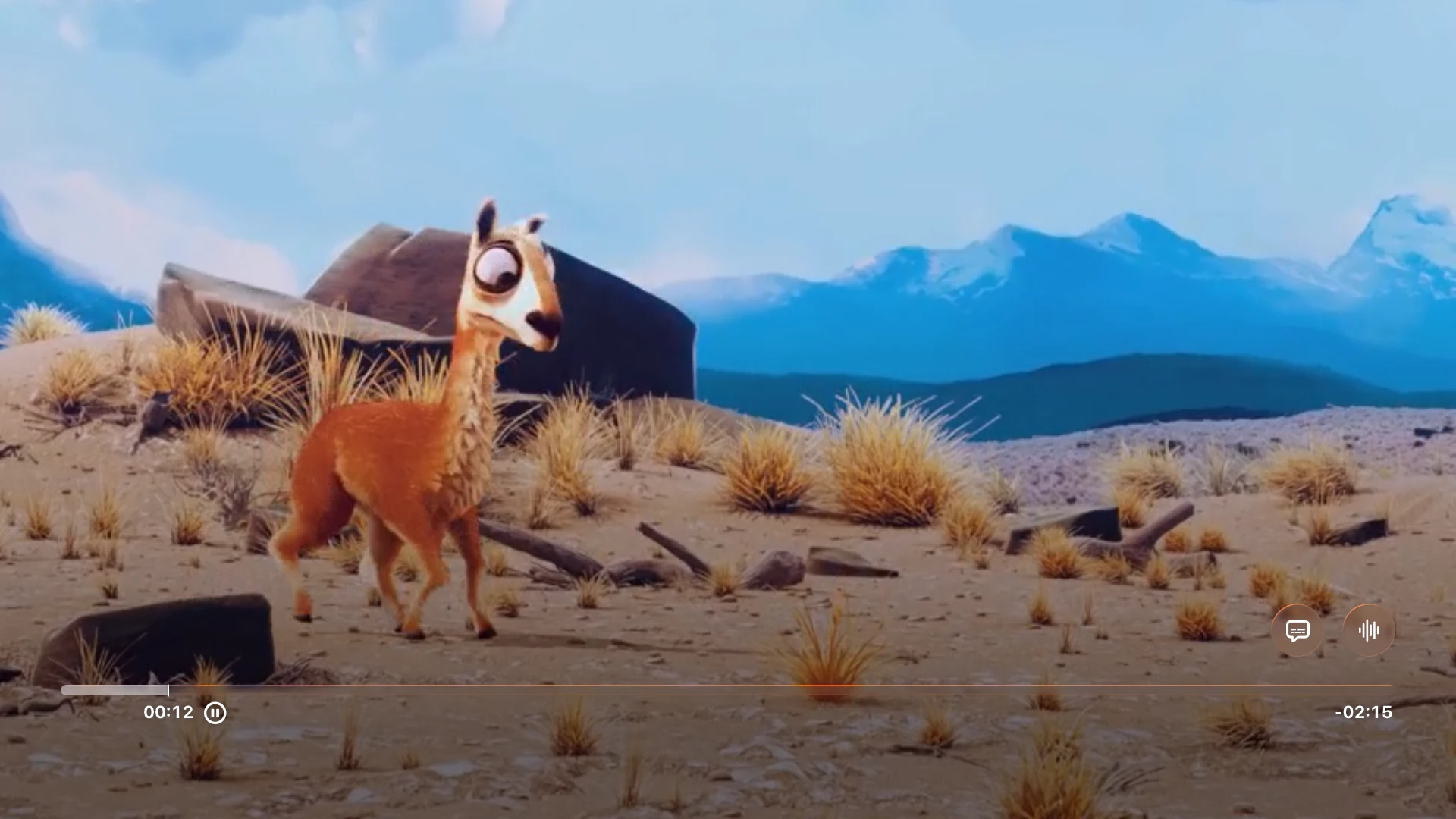
- Subtitles — Automatic detection and embedding of external subtitle tracks
- Autoplay — Continuous playback through folders
- iCloud Keychain — Credentials sync across your Apple devices

Setup Guide
Connect Tomo TV to your Jellyfin server in three steps:
- Server URL
Your Jellyfin server address including port, e.g.http://192.168.1.100:8096 - API Key
In Jellyfin, go to Dashboard → API Keys → Add and create a key for Tomo TV - User ID
In Jellyfin, go to Dashboard → Users, click your username, and copy the ID from the browser URL
Testing with the Jellyfin Demo Server
If you don't have your own Jellyfin server, you can test Tomo TV using the official Jellyfin Demo Server.
Demo Server Details
The server is https://demo.jellyfin.org/stable, and you can use the username demo with an empty password to login. Use the token generator below to get an API Key and User ID. Note that the demo server resets periodically, so your generated token may stop working after some time.
Video Codec Support
Tomo TV handles codec compatibility automatically. Your Jellyfin server needs FFmpeg installed and transcoding enabled.
Streaming Quality
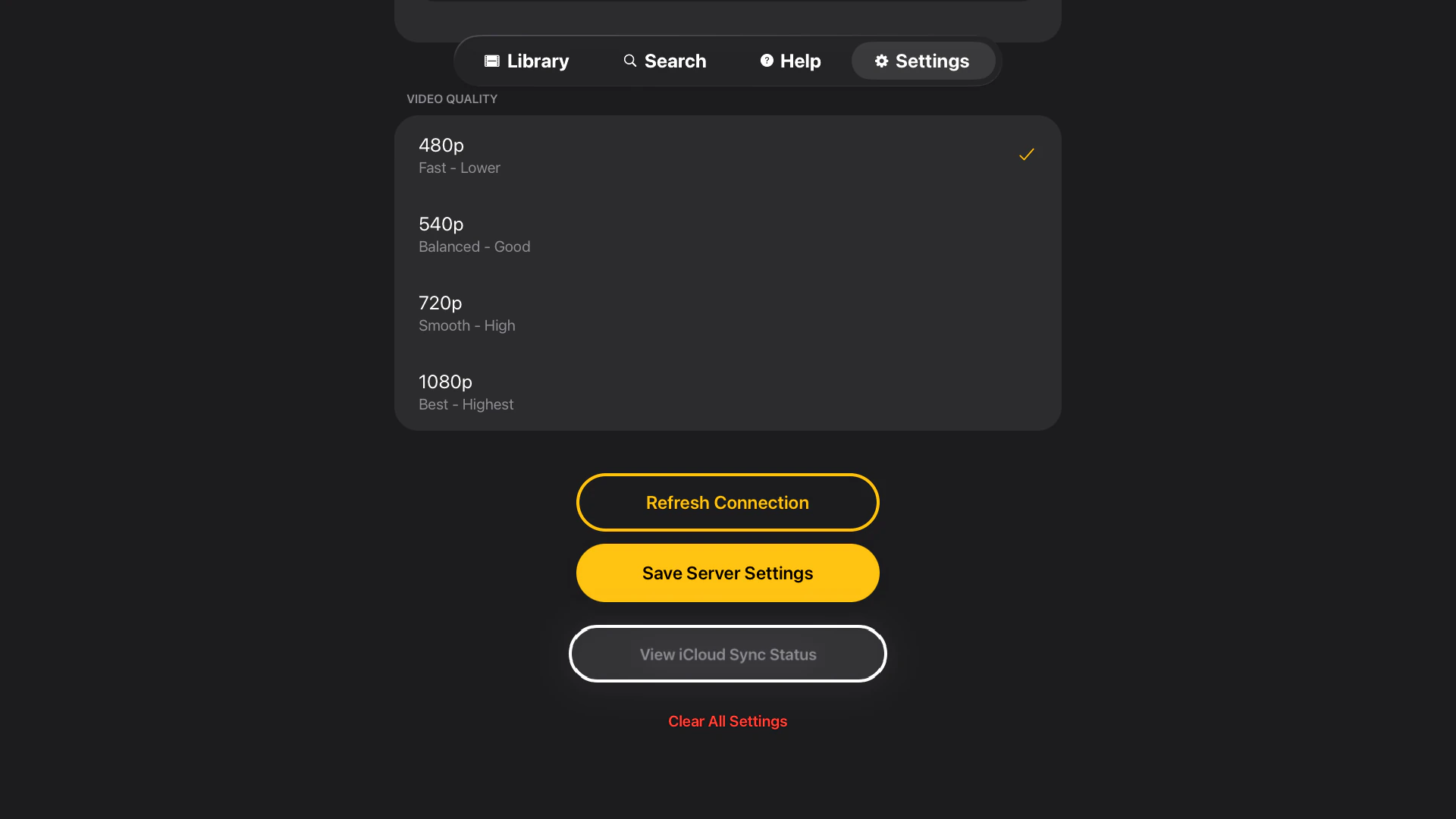
Tomo TV offers four quality presets that control transcoding bitrate. Direct play videos always stream at original quality regardless of this setting.
Slow Wi-Fi, remote streaming over VPNDefault
Standard home Wi-Fi
Fast Wi-Fi
Wired Ethernet, Gigabit LAN
| Preset | Bitrate | Best For |
|---|---|---|
| 480p | 1-2 Mbps | Slow Wi-Fi, remote streaming over VPNDefault |
| 540p | 2-4 Mbps | Standard home Wi-Fi |
| 720p | 4-6 Mbps | Fast Wi-Fi |
| 1080p | 8-12 Mbps | Wired Ethernet, Gigabit LAN |
Search
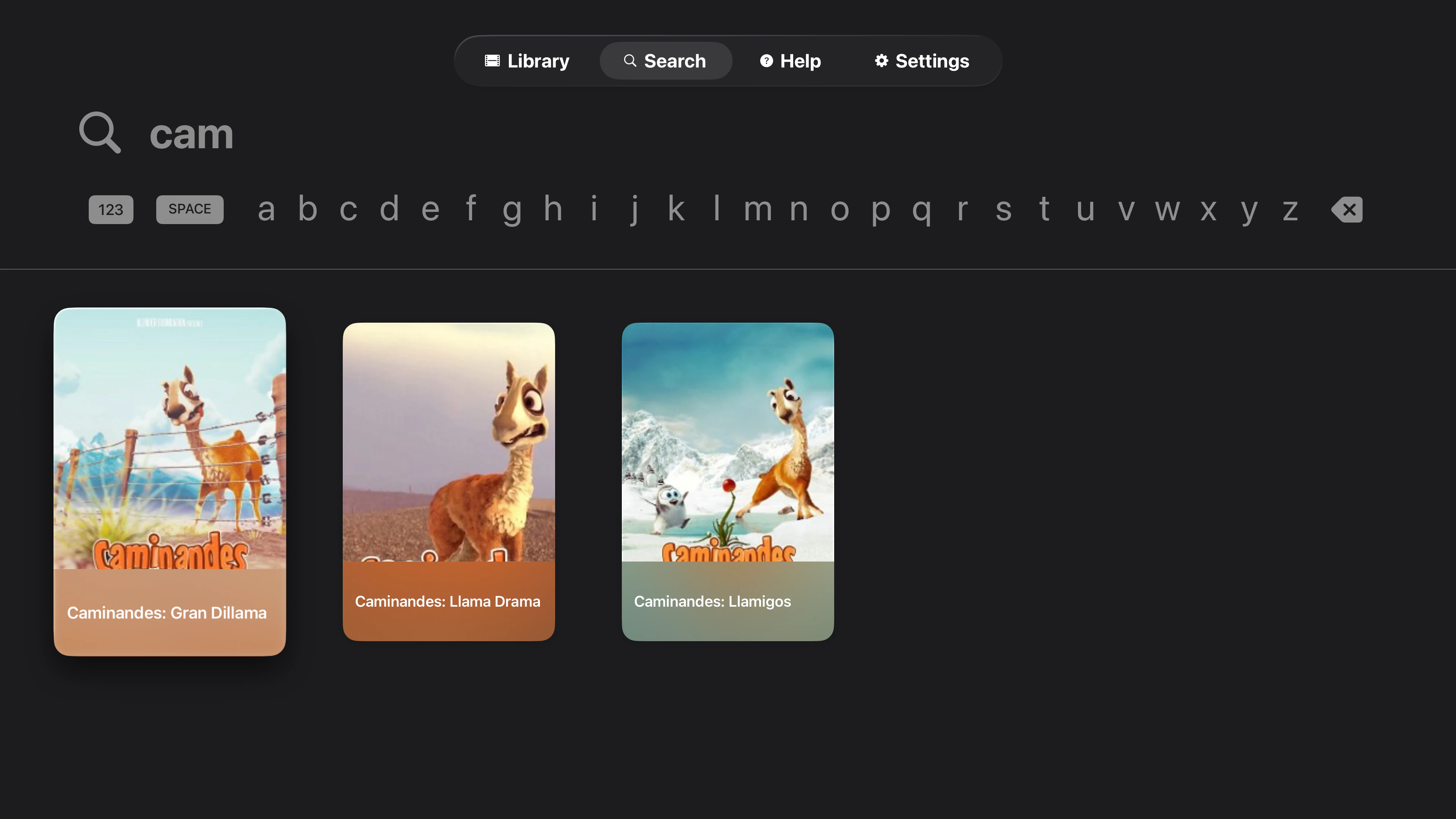
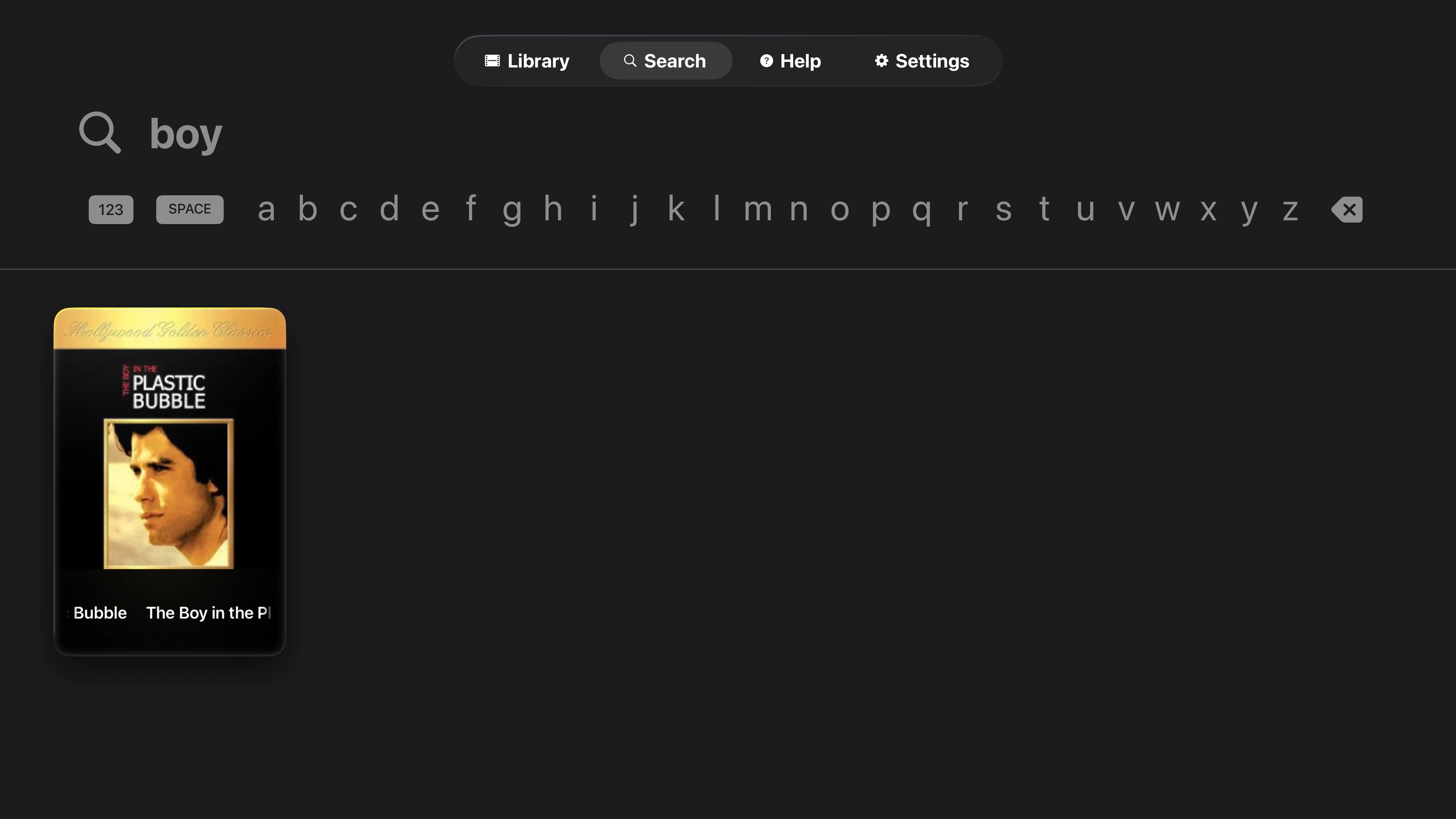
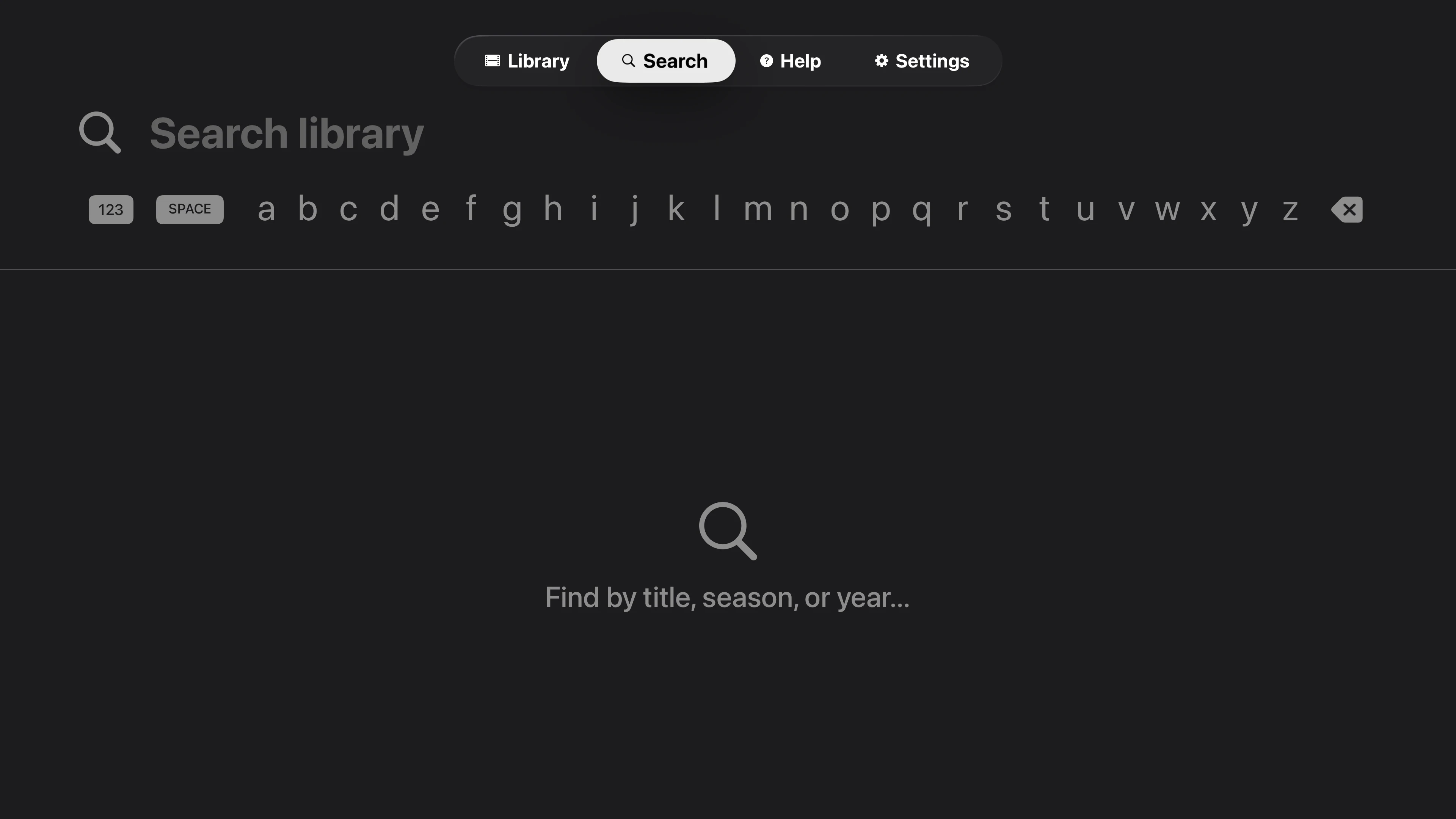
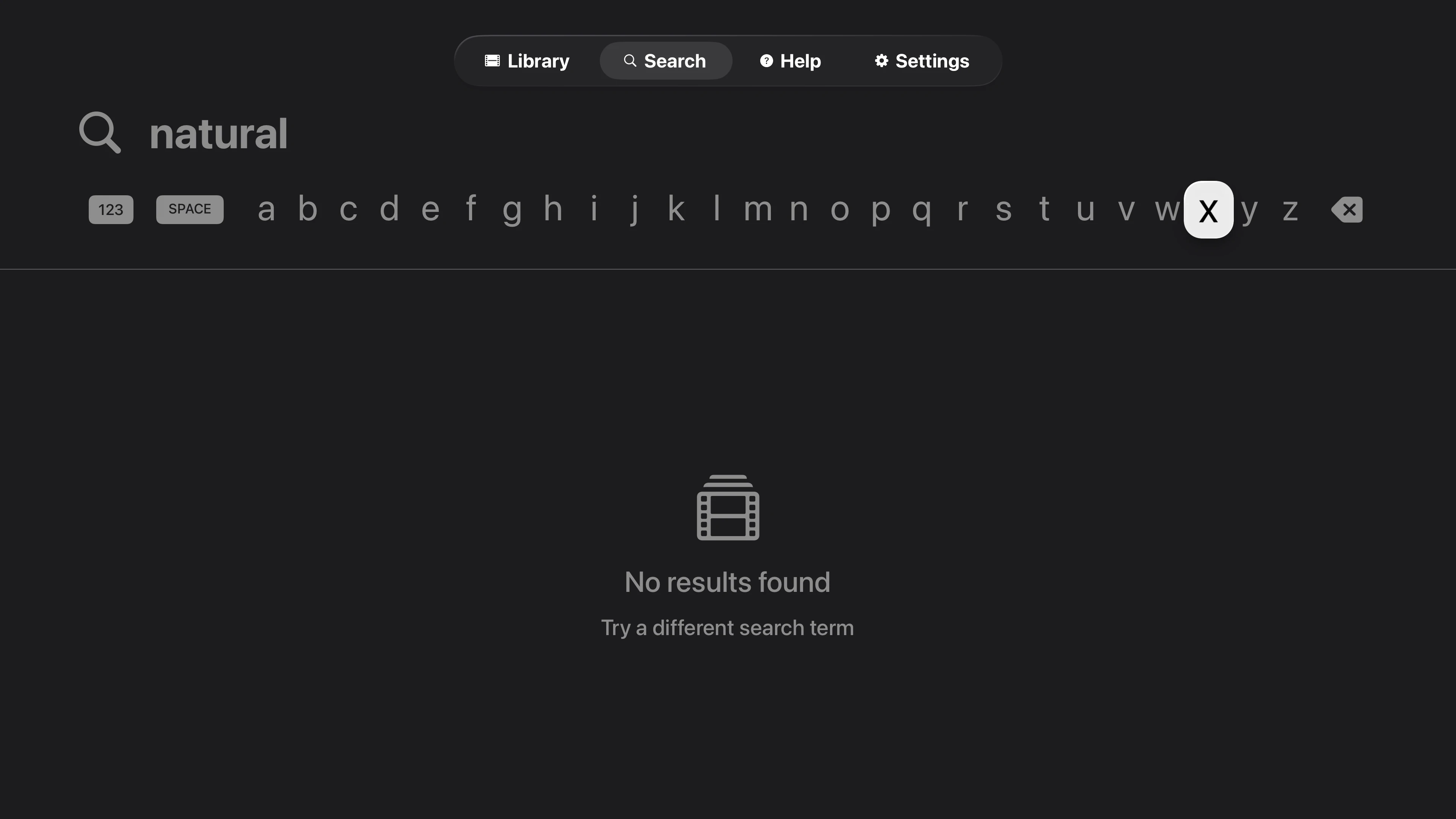
Find anything in your library using the native Apple TV keyboard with SwiftUI's native .searchable modifier. Results appear as you type in a customizable grid layout, making it easy to jump straight to what you want to watch.
Search functionality powered by expo-tvos-search, an open-source Expo module that brings native tvOS search integration to React Native apps. Published on npm with TypeScript support, customizable layouts, and extensive configuration options.
- npm: expo-tvos-search — Install with
npx expo install expo-tvos-search - GitHub: keiver/expo-tvos-search — Source code, issues, and documentation
- Library docs: expo-tvos-search tool page — API reference, layout presets, and examples
Key features: Native SwiftUI integration, 7 customizable layout presets, smart image handling with placeholders, search overlay control, error boundaries, and full TypeScript support. Compatible with tvOS 15.0+, Expo SDK 51+, and React Native tvOS 0.71+.
Troubleshooting
- Black screen or video won't play
- Enable transcoding in Jellyfin: Dashboard → Playback → Transcoding. Ensure FFmpeg is installed on your server.
- Cannot connect to server
- Verify the server URL includes the port (e.g.
http://192.168.1.100:8096). For remote access outside your home network, use HTTPS with a valid certificate. - Buffering or slow playback
- Lower the quality preset in Settings. Enable hardware transcoding in Jellyfin if your server supports it (Intel QuickSync, NVIDIA NVENC, or VAAPI).
Requirements
- Apple TV 4K or Apple TV HD running tvOS 17+
- Jellyfin server 10.8 or later
- FFmpeg installed on the Jellyfin server (for transcoding)
- Local network connection, or HTTPS for remote access
Privacy
Tomo TV includes no third-party analytics or tracking SDKs. Your server credentials are stored locally in iCloud Keychain—we never access them. Video streams directly between your Apple TV and your Jellyfin server with no intermediate servers.
Support
Questions or feedback: contact@keiver.dev
Open Source
- keiver/tomotv — App source code
- keiver/expo-tvos-search — Expo module for tvOS TopShelf search integration